

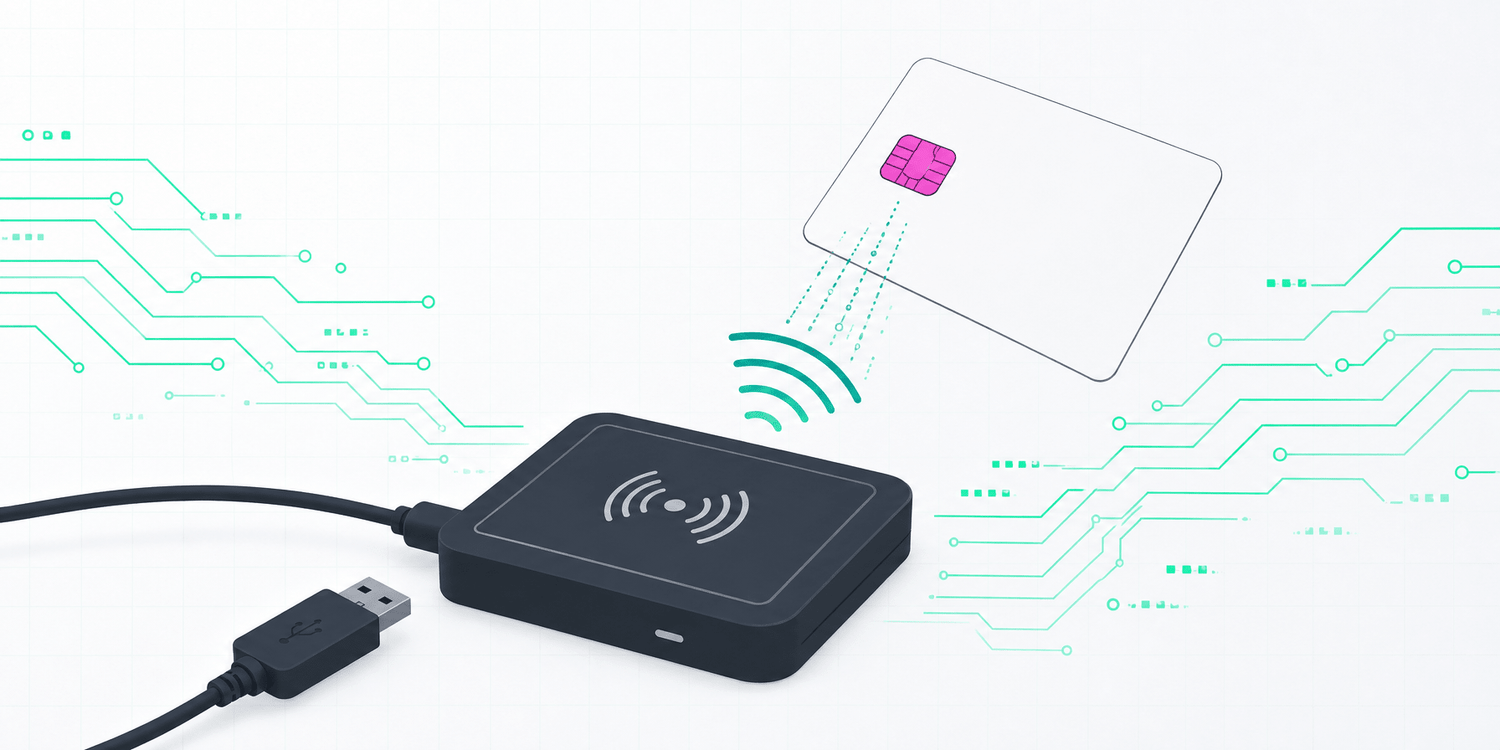
What is EM4100?
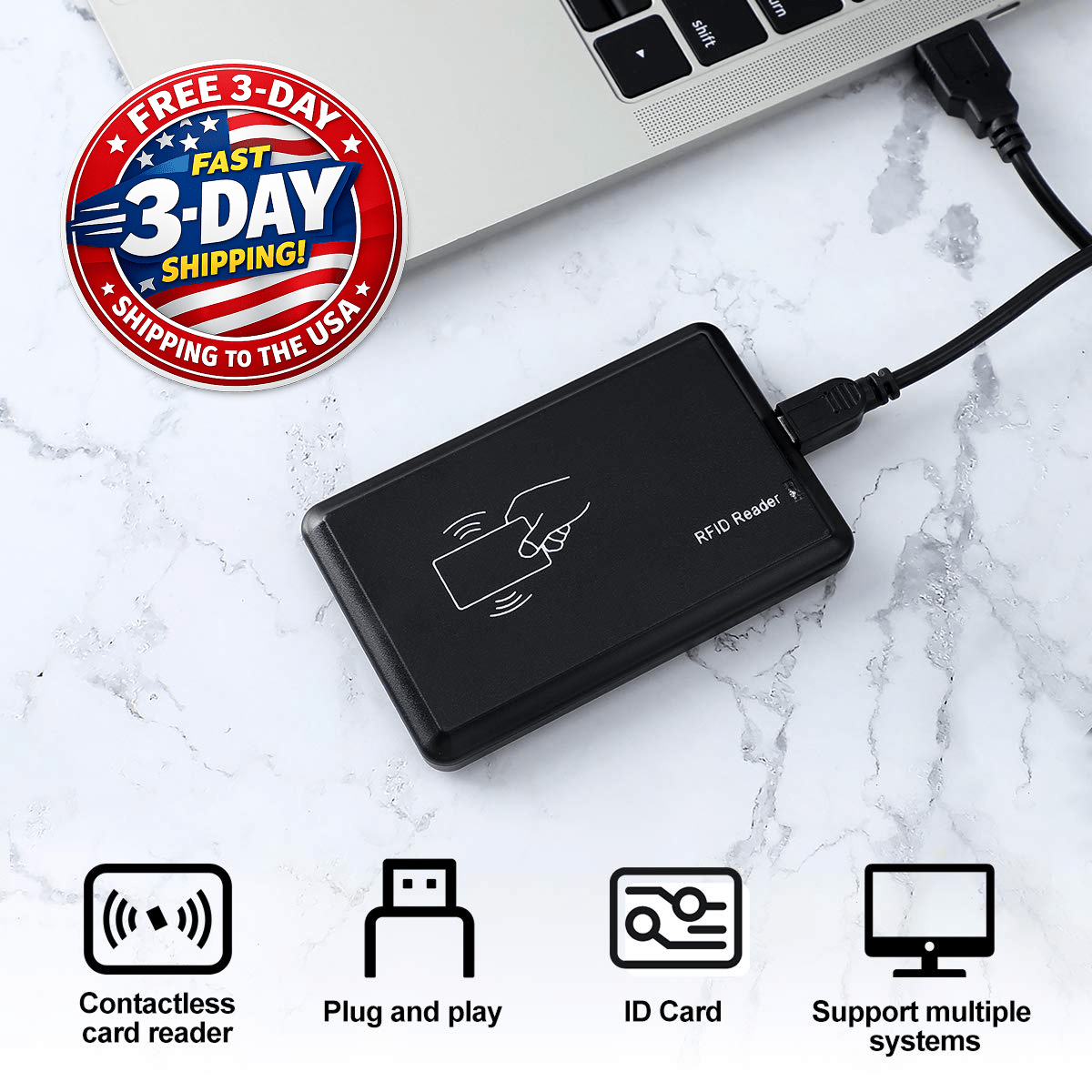
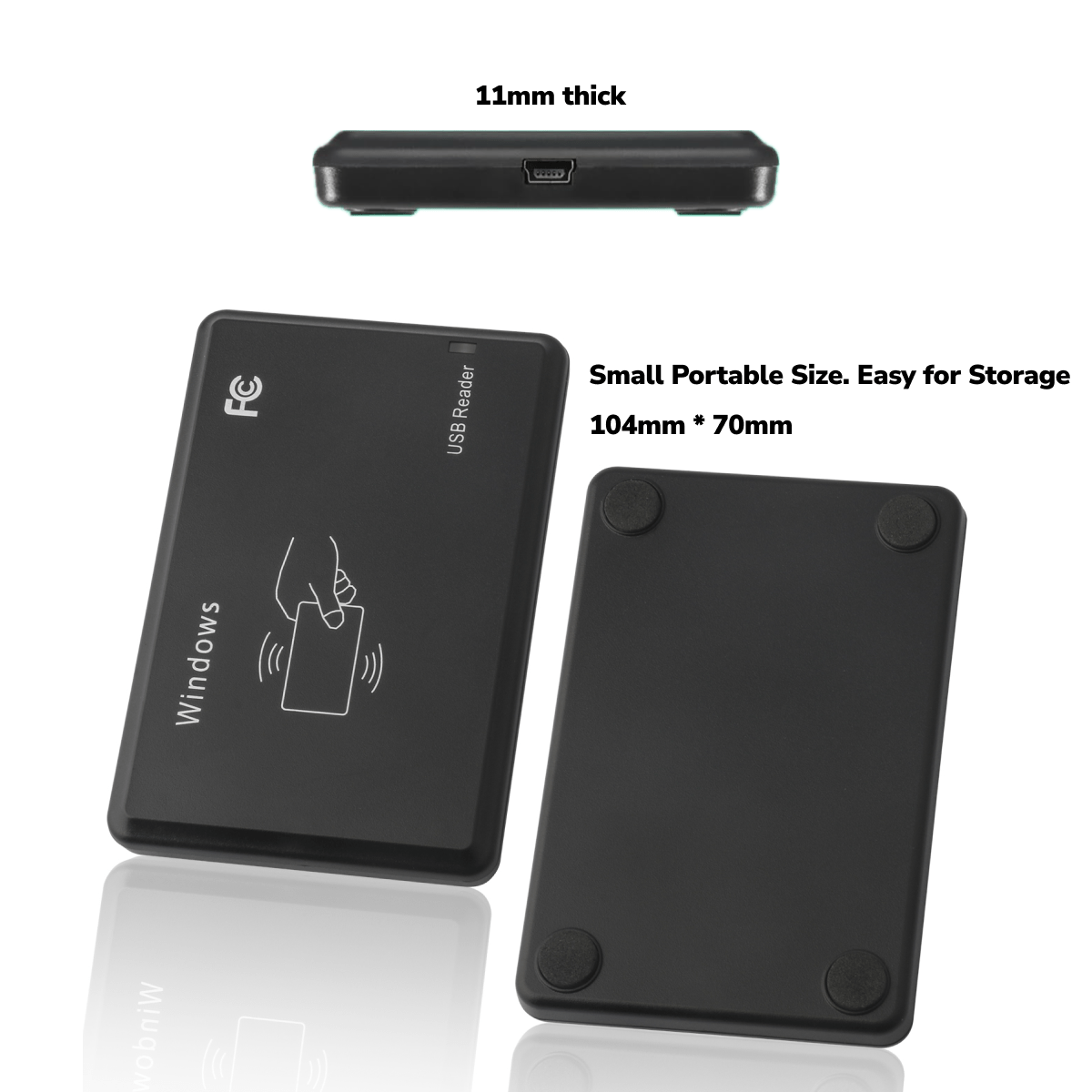
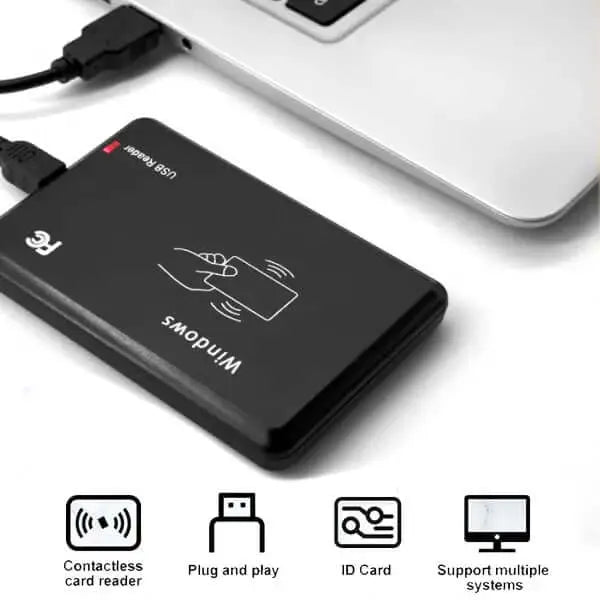
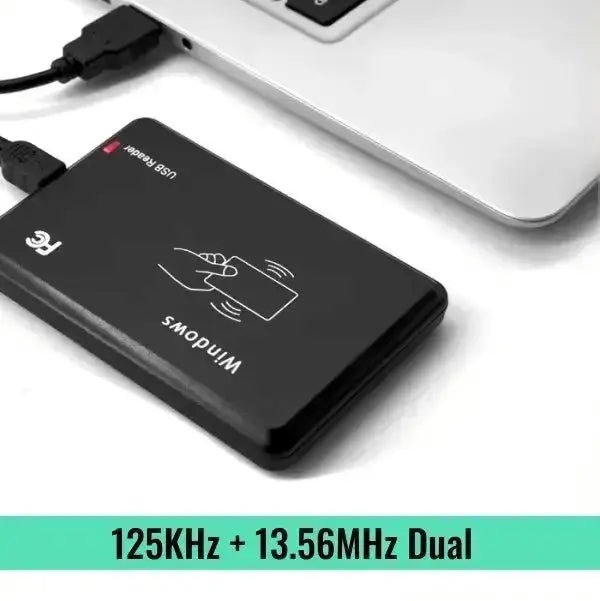
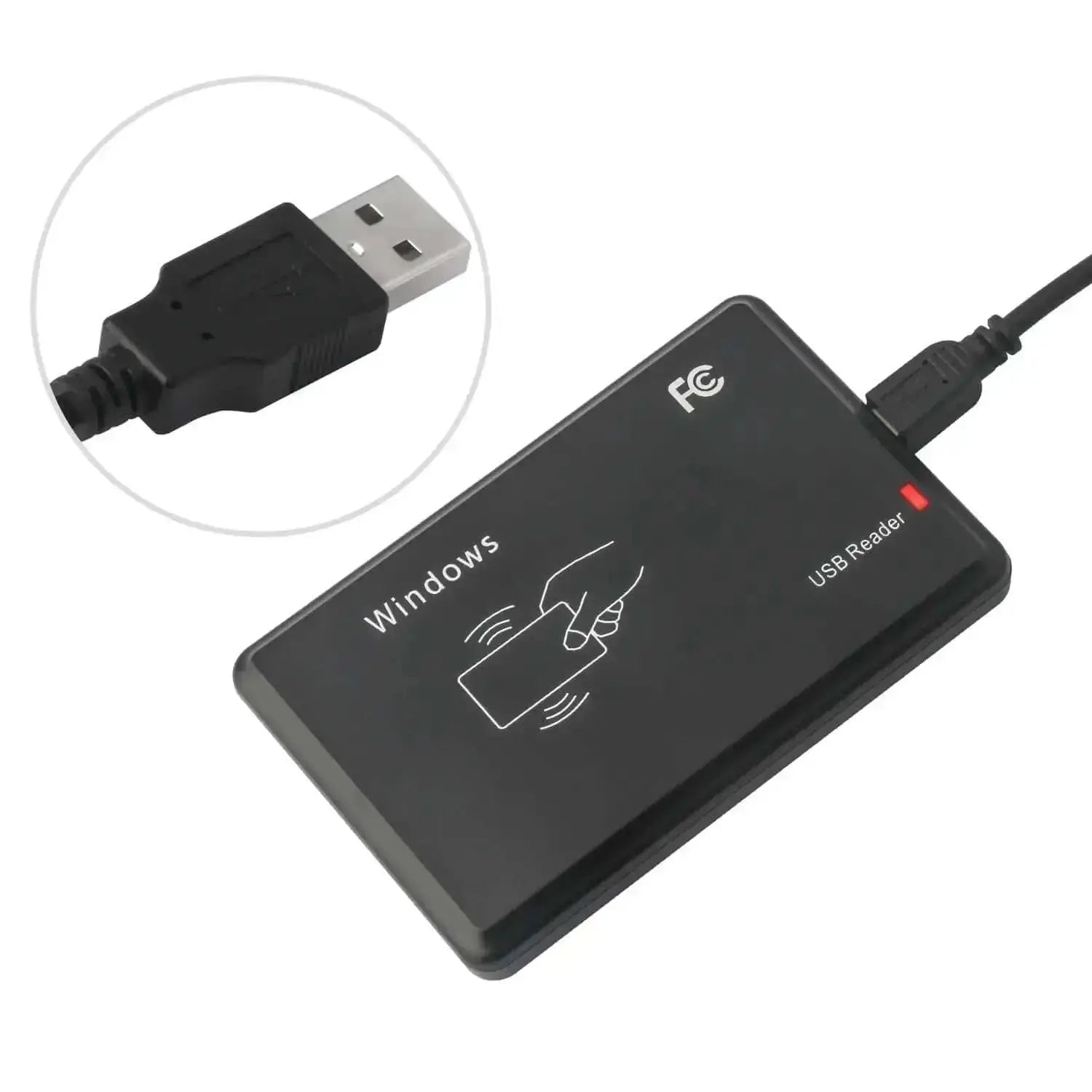
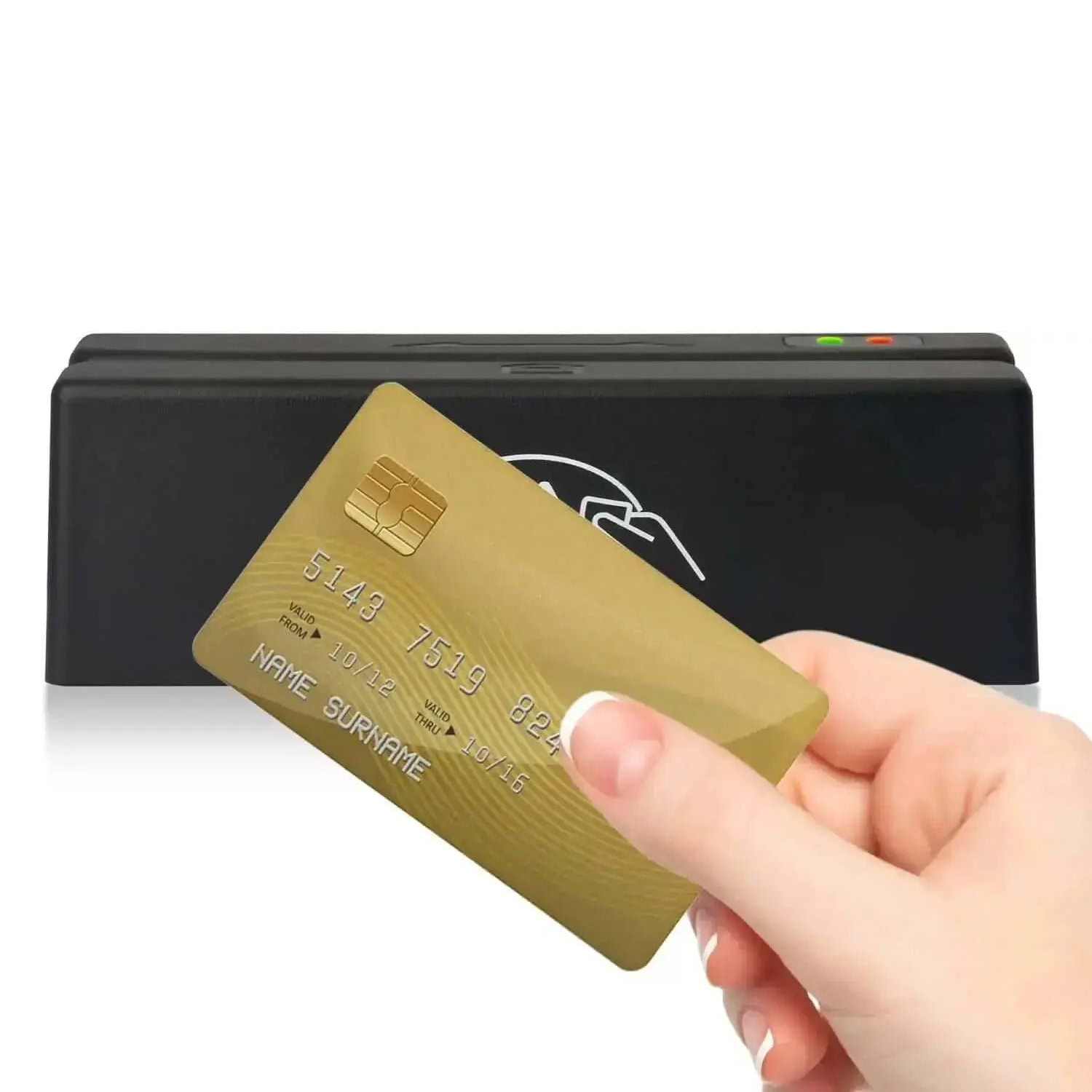
An EM4100 125Khz RFID Reader is a device that can read RFID cards or tags operating at a frequency of 125Khz, specifically those that use the EM4100 chip. It works as a keyboard emulator. It's widely used for access control, membership management, and ID identification.
What types of cards or tags are compatible with an EM4100 125Khz RFID Reader?
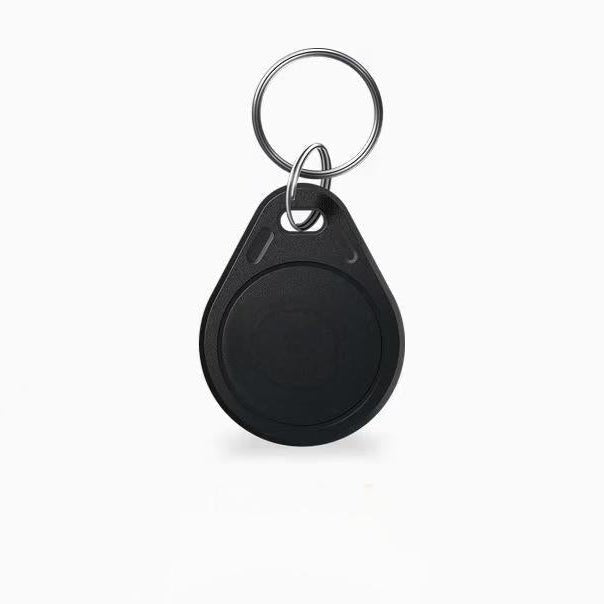
An EM4100 125Khz RFID Reader is compatible with 125Khz EM410X and EM4100 family cards and tags.
EM4100 125Khz Reader User Guide
Download the printable EM4100 user guide for setup steps, compatible cards and key fobs, output-format settings, and troubleshooting.
Download the EM4100 User Guide (PDF)
Using the EM4100 125Khz ID Card Reader
-
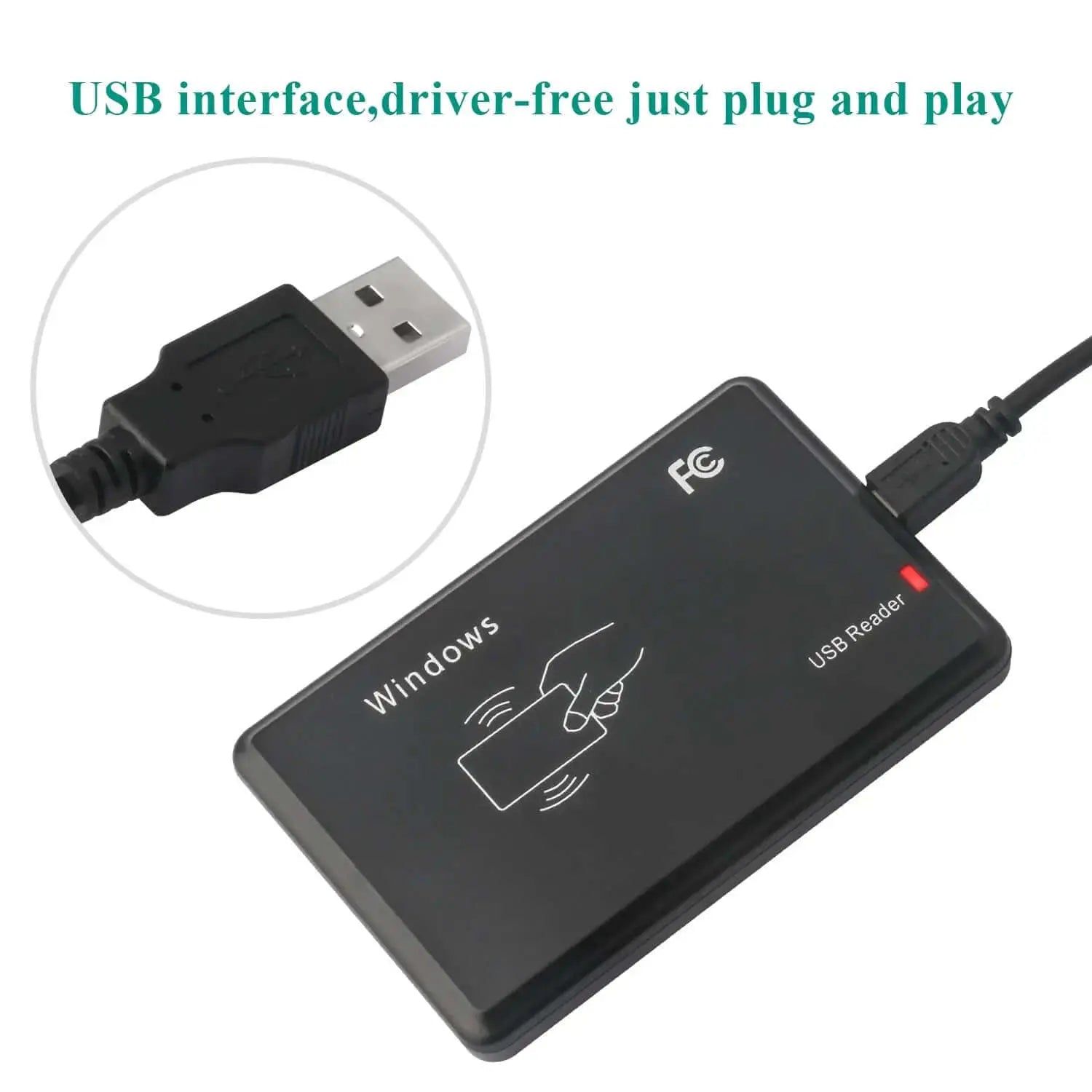
Connect the reader to the computer with the included USB cable. For a Mac with USB-C ports, use a compatible USB-C adapter or hub. A supported Android phone needs USB host/OTG support and a suitable adapter.

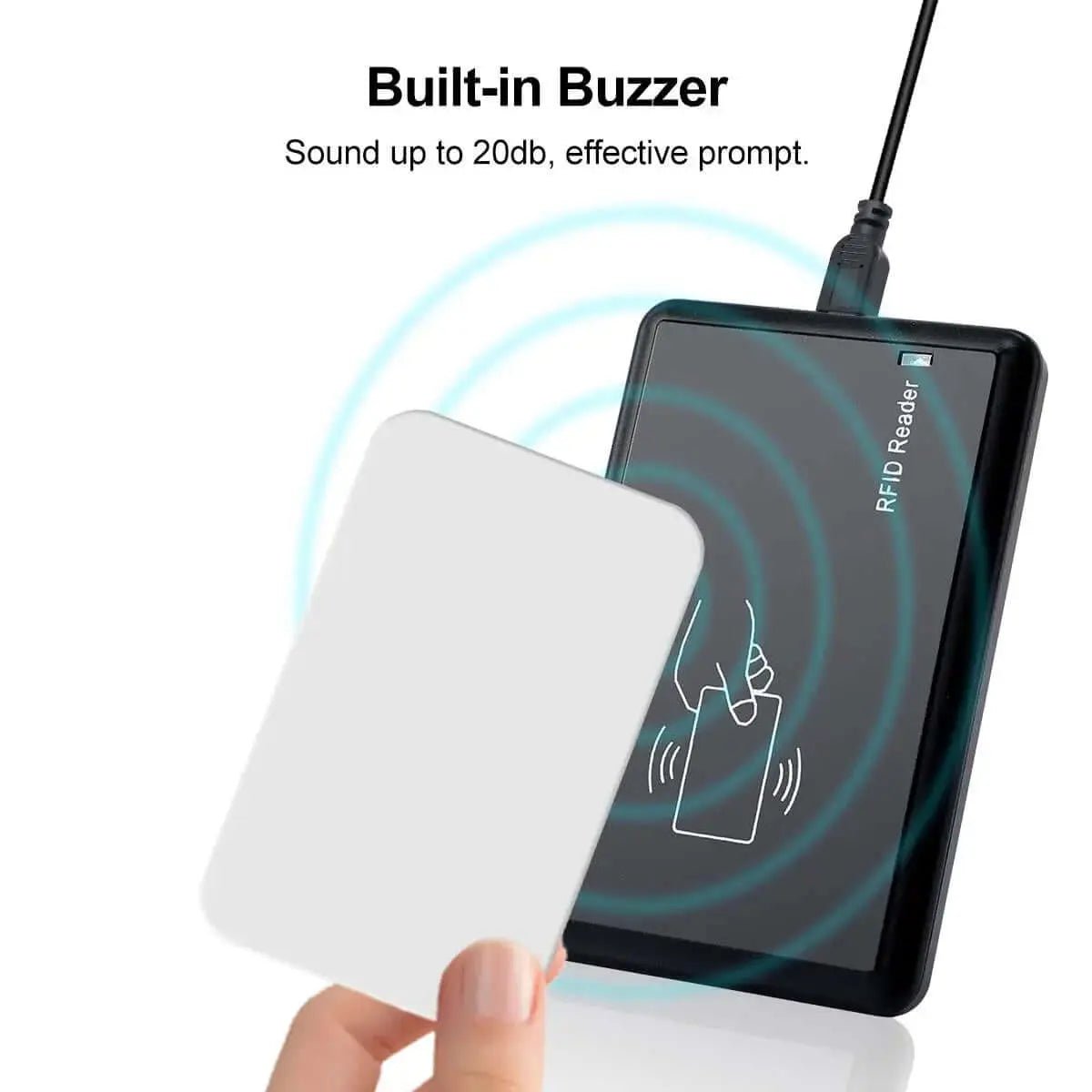
- When the buzzer rings, it means the reader is powered. Shortly, the LED light turns red, ready to read data.

- Open an empty document in Notepad, MS Office Word, or Excel on your computer. Click in the document to prepare for reader data output.
- By default, the reader reads ten digits of the serial number. However, if you prefer to read either 8 or 18 digits of the serial number, you can download the setting tool here to configure it. All you need to do is adjust the output format digits accordingly.

- Place the card/tag on top of the reader. The data number of the card/tag will appear in the open document. Meanwhile, the LED light will change from red to green.

How do I change the number from 10 digits to 8 or 18 digits?
The reader outputs 10 digits by default. Use the EM4100 setting tool supplied with the reader to select 8-, 10-, or 18-digit output. The setting changes the output format; it does not change the ID stored in the credential.
For Macs with USB-C ports, use a compatible USB-C adapter or hub. After a successful read, remove the card or tag before presenting the next one.
Important: “USB HID keyboard input” describes how the reader sends data to the computer. It does not mean the reader supports HID Prox credentials.
How do I use the EM4100 reader on a Mac?
Do I need to install a Mac driver?
No. The reader is plug-and-play and appears as a USB keyboard input device. If your Mac has only USB-C ports, connect the reader through a compatible USB-C adapter or hub. Open TextEdit, Notes, Numbers, or another text field, click where you want the number to appear, and then present a compatible credential.
How do I use the EM4100 reader on Windows?
Do I need to install a Windows driver?
No. Connect the reader to a USB port, wait for the red ready light, and open Notepad, Word, Excel, or another text field. Click in the field before placing a compatible credential on the reader.
Which cards and key fobs work with the EM4100 reader?
Use 125Khz credentials that use the EM4100, EM410X, or TK4100 format. The reader does not support every 125Khz credential, and it does not support 13.56Mhz IC, MIFARE, or NFC credentials.
Will it read a 125Khz card with an ID number printed on it?
Yes, when the card uses a supported 125Khz EM4100-family format. In the video, the numbered 125Khz card is read successfully, while the blank 13.56Mhz IC card is not.
Will it read a 125Khz key fob with an ID number engraved on it?
Yes, when the key fob uses a supported 125Khz EM4100-family format. In the video, the engraved-number key fob is read successfully, while the unnumbered 13.56Mhz IC key fob is not.
Does a printed or engraved number guarantee compatibility?
No. A visible ID number is a useful clue for the examples shown in these videos, but it is not the technical compatibility test. Compatibility depends on the credential's frequency and chip format. Confirm that the credential is a supported 125Khz EM4100-family card or tag.
Will the reader work with 13.56Mhz IC or NFC cards and key fobs?
No. This reader is designed for supported 125Khz EM4100-family credentials. It cannot read 13.56Mhz IC, MIFARE, or NFC credentials, even if the card or key fob looks similar.
What should I do if no number appears?
- Confirm the credential is a supported 125Khz EM4100, EM410X, or TK4100 card or tag.
- Check that the LED is red before reading.
- Click inside the text field so the cursor is active.
- Place the credential flat on the marked reading area.
- Remove the credential completely, then present it again.
- Keep the reader away from metal or magnetic surfaces, which can interfere with the radio signal.
- If you use an adapter or hub, confirm that it supports USB data, not power only.
Can the EM4100 reader write or encode cards?
No. This model is a reader only. It reads the identifier from a compatible credential and types it into the active field like a keyboard.